Objective: To navigate and update your company profile, be able to change your password, and view connected accounts.
Difficulty: Easy
In this article:
Navigate to and update your profile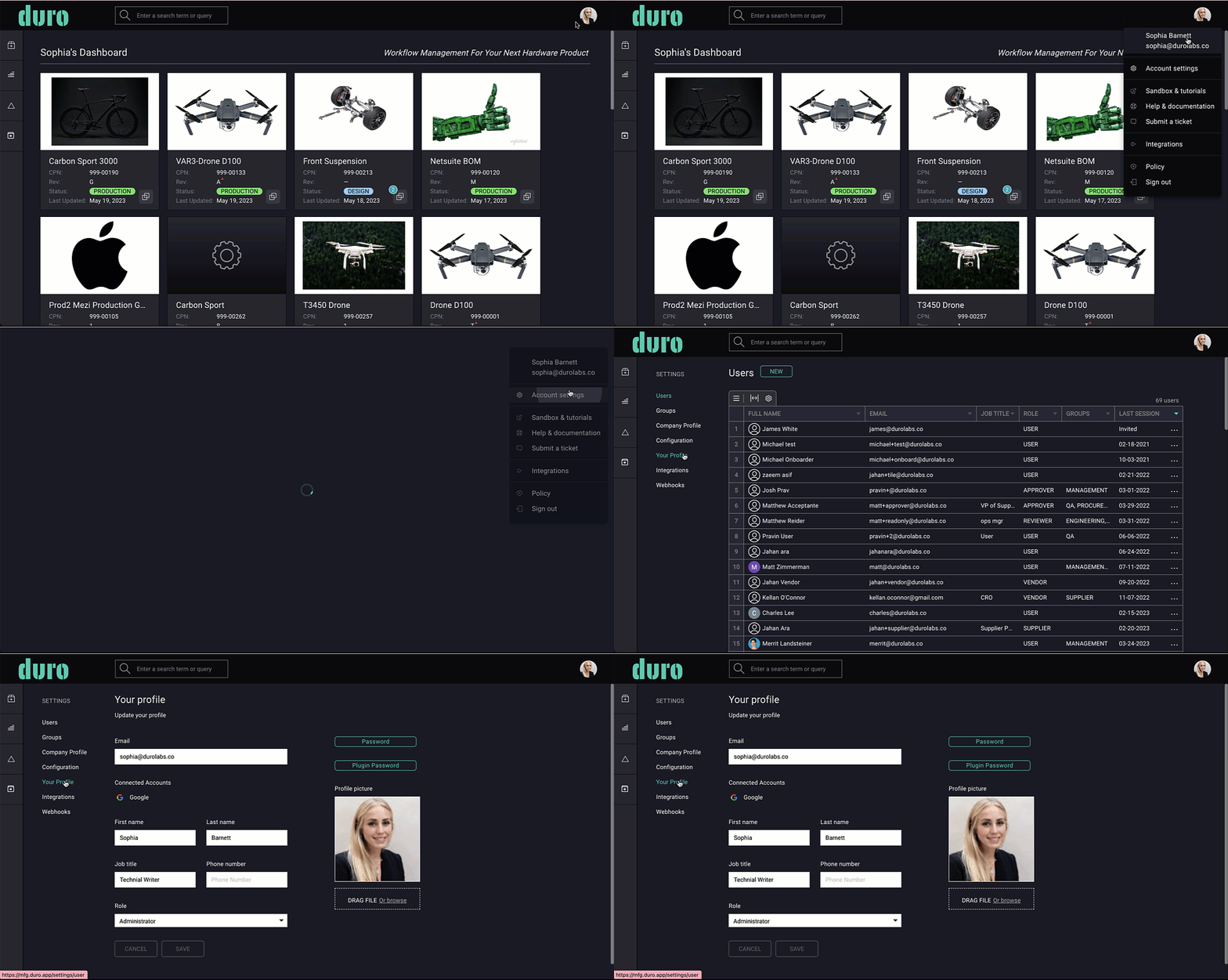
- Log into your Duro account and begin by clicking on your avatar in the top-right corner. Then, click on Account settings.
- In the left side bar, select Your profile.
- On this page you can update your user profile thumbnail, name, email address, password, and view connected accounts.
Change your password
- Within the Your Profile page, click on the Password button.
- Click on Update Password. All user accounts require a password with the following characteristics:
- Minimum length of 8 characters
- Maximum length of 64 characters
- Common and compromised passwords are not allowed (e.g. “password”, “abcd1234”, etc.)
- Enter your new password and confirm your old password.
- Click Update Password.
Change your plugin password
Your plugin password can be altered in Your Profile as well. This password is identical for accessing the Duro-interface of all your plugins. Approved plugins include the following systems: Onshape, Altium, Ion, Valispace, and Netsuite. SolidWorks does not use plugin passwords. Although each plugin may have their own individual login independent of Duro’s system (on the non-Duro interface side), Duro provides only one plugin password per user that applies to all the plugins. For example, if you change your plugin password when using Onshape through Duro, that same password will be used for all other plugins you have that are associated with Duro moving forward.
To change your plugin password, please follow the instructions below:
- Within the Your Profile page, click on the Plugin Password button located above your profile picture.
- This will open the Change Plugin Password module. Enter a new password.
- All user accounts require a password with the following characteristics:
- Minimum length of 8 characters
- Maximum length of 64 characters
- Common and compromised passwords are not allowed (e.g. “password”, “abcd1234”, etc.)
- Click Save.
Note: Your plugin password can be the same as your Duro password.
View connected accounts
You can view which accounts you have connected to Google Services.
Update user profile picture
- Drag and drop .png or .jpeg image.
- Or Browse and choose an image from your library.
- Click Save.
Enable 2FA
To enable 2FA for your profile, please visit our article, Enable Two-Factor Authentication (2FA).
Pro tips
- Read more about user roles in Users: Add Your Team and Assign Team Roles.
- If your administrator has set up your Duro account to require 2FA, the enable 2FA option will be grayed out and you will not be able to toggle it off.
- If you lose your 2FA device, please contact us at info@durolabs.co or by raising a support ticket.
Comments
0 comments
Please sign in to leave a comment.