Objective: Add and onboard your team in Duro within minutes.
Difficulty: Easy
In this article:
Once you've created your own account with Duro, you will be able to add other users. Additional users do not have to have a Duro email attached to their account; this rule only applies to the first user to access Duro. Customize your user profile with the following information: first and last name, email address, user role, group categorization, and job title.
Add a new user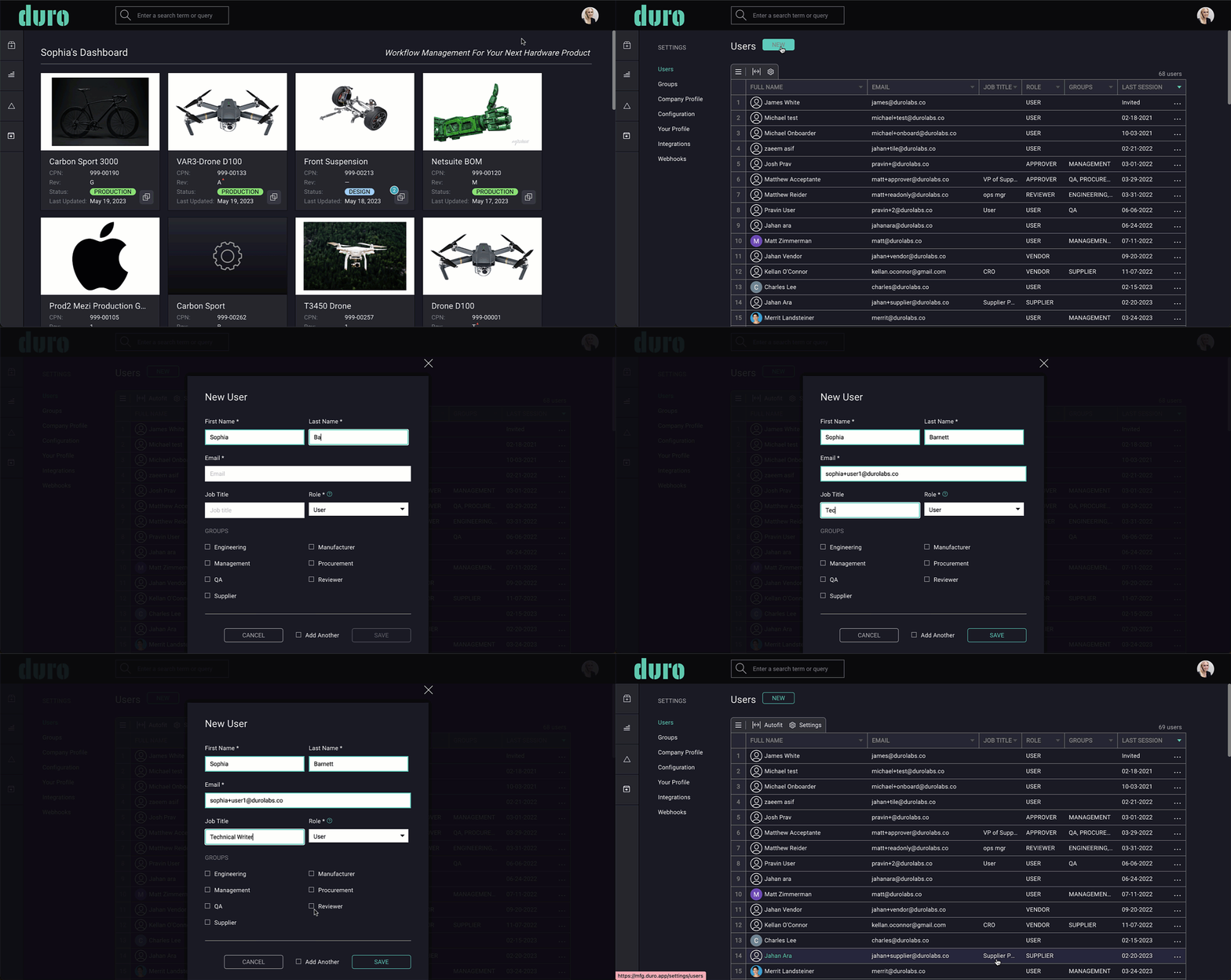
- Log into your Duro account and click on your avatar in the top-right corner.
- Select Account Settings.
- In the left navigation bar select Users.
- Select the New button at the top of the Users table.
- Insert the new user’s first name, last name, and email address. The email address must not be currently used or linked to any Duro account. Only one email address can be associated with one company account.
- Insert the new user’s job title.
- Select the new user’s role. There are several different roles that can be assigned to a new user: Administrator, User, Approver, Reviewer, and Supplier. The default role is User. Please see the below permissions and capabilities of each user role.
- You also have the option to assign a new team member to a group. The different group options available to select are the following: Engineering, Management, QA, Supplier, Manufacturer, Procurement, or Reviewer. For more information on these, please visit our article on Groups.
- Save your settings.
Note: There is one restriction on adding a new user’s role: you can only add new users as your permission level or a role with more limited access. For example, if you are a Reviewer, you can only add new users at the same permission level of Reviewer or at Supplier, a more restricted access level.
Team permissions and capabilities
Products and components
Account administration
Change Orders
Disabling and deleting users
You have the ability to disable a new user if you want to suspend their account temporarily or delete to remove their account permanently.
- Log into your Duro account and click on your avatar in the top-right corner.
- Select Account Settings.
- In the left navigation select Users.
- Locate the user you want to disable or delete.
- Scroll to the group in question, and click on the green “X” next to the name of the user you would like to remove from the group.
- A module will populate asking you to confirm your decision.
- Click YES. The user is now removed from the group.
User states and designations
New user invitations
The status of a new user will remain as Invited until they activate their account. Invite links expire 120 hours (5 days) after they are sent. If the link expires before a new user is able to accept the invite, you will need to remove that user, and add them once more. This will trigger a new email invite. Once the new user signs into their account, the date of their last session will be visible.
Full Access users vs Read-Only users
There are two categories that Duronauts fall under: Full Access users and Read-Only users. Administrators and Users are considered to be Full Access users, meaning that they are permitted to edit and create content. Approvers, Reviewers, and Suppliers are considered to be Read-Only users as they do not have editing and creating capabilities in Duro. If users were accidentally designated as Full Access upon account creation, their role can be changed to be read only in order to create more seats for those with full access privileges. Alternatively, more Full Access seats can be added to your Duro plan at an additional cost. To upgrade your plan, please reach out to your Duro representative or contact us at info@durolabs.co.
Comments
0 comments
Please sign in to leave a comment.